
Manual
This describes how to use the program: from the first launch to the synchroniser and the local API. Version 3.46.
If you have not installed it yet, start with installation; prices and licence terms are on a separate page. Did not find your answer — write to [email protected], and if something is missing from the program itself — to [email protected].
How the program is built
A profile is an ordinary folder on disk where Chrome keeps its data: cookies, passwords, bookmarks, history, extensions. The program does not replace the browser: it creates such folders, remembers additional details about each one (proxy, note, category, fingerprint) and launches the real Google Chrome, passing it the settings it needs.
Two important properties follow. First, the profiles stay yours: they sit in a folder you chose, and without the program they can be opened by the same Chrome. Second, the browser version is always current — Chrome updated, and so did your profiles.
There are no tooltips in the program: hover the mouse over a button, icon or column — an explanation will appear in the bottom line of the window.
Where things are kept
| File | What is inside |
|---|---|
config.json | Program settings: profile folder, path to Chrome, theme, scale, API port |
profiles_metadata.json | Per profile: proxy, note, category, fingerprint, API access, launch counter |
proxies.json | The proxy library from the "Proxies" tab |
scripts/ | Your automation scripts |
logs/ | The daily work log and the logs of script runs |
Quick start
- Open the Settings tab and set the profile storage folder — profiles will be put there. The program finds the path to Chrome itself.
- Go back to Profiles, enter a count and a name prefix, press Create profiles.
- Tick the profiles, paste proxies into the Proxy for selected field and press Apply.
- Press Launch — browsers open with your profiles.
Installation and where your data lives
The program is installed by an ordinary installer: language, folder, shortcuts. The language chosen during installation becomes the program's language — you can switch it in the top right corner at any moment.
The program itself goes into Program Files, while your data — settings, notes, categories, licence and logs — goes into your personal user folder. That is not a whim: a program cannot write into Program Files without administrator rights.
If you carry the program around as a folder (on a disk or a flash drive), it keeps working as before: when a config.json sits next to it, all the data stays there too.
Interface scale
On a fresh install the scale is chosen by screen height: up to 1150 pixels — 100%, up to 1400 — 125%, above that — 150%. Earlier everyone got 150%, and on a Full HD screen the program looked needlessly huge.
Your own value stays yours: if you set the scale by hand, an update does not touch it. You change it in Settings; the ceiling is 200%.
Licence
You get to know the program through a trial period: 100 profiles for 7 days. When it ends, access to the program closes until you buy — but your profiles, cookies and sessions stay intact on your disk. You lose the tool, not your data.
How to activate: Settings → Licence…. The window shows the ID of this computer — send it to the bot, get a key and paste it into the same window. The state appears at once: number, plan and term.
Extended your subscription in the bot — click Payment check next to it: the program will immediately ask the server and pick up the renewal without waiting for its scheduled check.
After a subscription ends there are a few days to renew — the program warns you in advance with a tray notification. Click it to open the bot. A lifetime licence has no reminders at all: you have already paid.
Starting with Windows
The Start with Windows checkbox in the settings adds the program to startup — it comes up minimised to the tray and does not open a window every time you log in. You can clear it there or in Task Manager on the "Startup" tab: it is the same entry, they cannot disagree.
Managing profiles
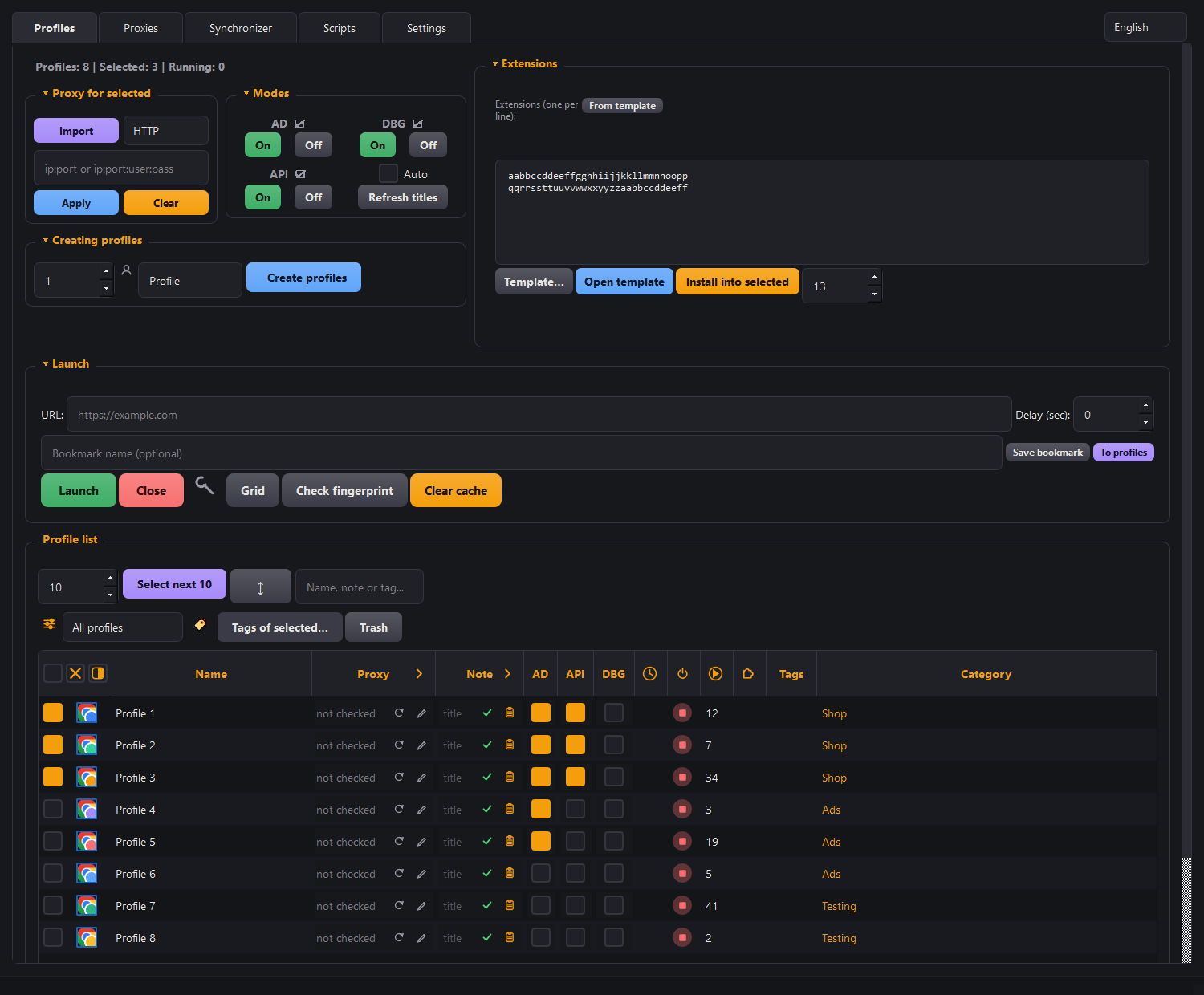
Table columns
Narrow columns are labelled with icons rather than words: the word "Runs" is by itself wider than any number in that column, and eight such labels ate half the table. What the icon means can be seen in the bottom line of the window if you hover the mouse over it.
| Column | What it shows |
|---|---|
| Checkbox | Profile selection. Almost every button works on the selected profiles |
| Icon | The profile's avatar. Double-clicking it launches or closes the profile, just like the name; the colour is changed from the right-click menu |
| Name | The profile folder's name. Renaming is in the right-click menu |
| Clock | How long since the last launch |
| Note | Your own text: a login, a purpose, anything. The row shows the title — the first line of the note; edited right in the row and saved with the checkmark ✓, the clipboard icon opens the note in full |
| Tags | Profile tags — see below for details |
| Proxy | Proxy state or its type and address — depending on how the column is expanded, see below |
| AD | Anti-detect for this profile |
| API | Local API access to the profile. Off means the API does not see it |
| DBG | Debug mode — an external debugging channel instead of the built-in one |
| Power | Status: running or stopped |
| Triangle | The profile's launch counter |
| Puzzle (Ext.) | How many extensions are installed; during a rollout, its progress |
| Category | The group the profile belongs to |
There is no column with the path to the folder: the folder is opened by the "Open in Explorer" item in the right-click menu.
A column's width is changed by dragging the edge of its header, the order by dragging the header itself, and clicking a header sorts the list.
Arrows in the "Proxy" and "Note" headers
At the right edge of the "Proxy" and "Note" headers there is an arrow — it toggles how much the column shows.
| Column | Collapsed | Expanded |
|---|---|---|
| Proxy | State: "alive" with latency and the country verification icon or the reason for failure; ⟳ rechecks the proxy, ✎ opens the edit window (where you can also pick from the library) | Type, address and editing right in the row: ✓ saves, ✎ opens the edit window, the eye icon shows the login and password of this row |
| Note | Title only | The entire note in a single line, lines separated by the "·" symbol |
The proxy login and password in the row are hidden until the eye icon is clicked: anyone standing behind you can see the table. The eye icon in the "Proxy" header shows them in the entire column at once.
Which columns to show
The sliders icon to the left of the category filter opens a list of columns grouped by meaning: "Profile", "Network", "Modes", "State". A tick shows or hides a column.
| Item | What it does |
|---|---|
| Show all | Brings every column back into the table |
| Hide optional | Leaves the working minimum: name, proxy, modes, status |
| Reset to default | Returns the original set, widths and order |
Collapsing panels
Clicking a panel's title ("Proxy for selected", "Modes", "Extensions", "Creating profiles", "Launch") collapses it. The triangle to the left of the name shows the state: ▾ open, ▸ collapsed. A collapsed panel leaves no empty frame — everything below moves up and the table gets more screen. The "Launch" panel keeps its main buttons when collapsed: closing it completely is deliberately not possible.
Bulk action buttons
| Button | What it does |
|---|---|
| Launch | Opens the selected profiles. The pause between launches is set by the "Delay" field |
| Close | Closes the selected profiles properly, letting Chrome save its data |
| Select next 10 | Ticks the next N unticked profiles — handy for working in batches |
Selection icons in the table header
Selection control sits right above the checkbox column — three icons the size of the checkbox itself, instead of three buttons that took up half a row.
| Icon | What it does |
|---|---|
| Square | Ticks everything visible on screen; clicking again unticks |
| Cross | Clears the selection on all profiles, even those hidden by a filter |
| Half-filled square | Inverts the selection |
Tools behind the wrench
To the right of "Close" there is a wrench icon — it separates launching from tools that have nothing to do with launching.
| Button | What it does |
|---|---|
| Grid | Arranges the windows of already running profiles on a grid; its size is set in the settings |
| Check fingerprint | Shows what a site really sees on the selected profile — see "Checking the fingerprint" |
| Clear cache | Frees space without touching cookies, passwords and bookmarks — see "Disk space" |
Bookmarks and the URL field
The URL field sets the page that opens when the selected profiles launch. Leave it empty and the profile's start page opens, with its name and colour.
Delay (sec) is the pause between profiles in a mass launch, and it is not a detail. Fifty browsers starting at once hit a site in a volley from one connection: to the platform that looks like an attack. In practice it ended with the whole pool of addresses going into a soft ban by CDN and DNS, and Cloudflare protection refusing even normal visits. A couple of seconds of delay removes the volley completely.
| Element | What it does |
|---|---|
| Save as bookmark | Remembers the address from the URL field. Saved addresses appear as small buttons above the field — clicking one puts the address back, right-clicking lets you rename or delete it, and dragging reorders them |
| To profiles | Puts those same bookmarks on the bookmarks bar of the selected profiles. The profiles must be closed; pressing again creates no duplicates |
| The UA list | A leftover from the first attempt at anti-detect, made before full fingerprints existed. Leave it on "Default (Chrome)": the profile's User-Agent remains native and matches the real version of Chrome — anti-detect does not touch it either. A manual UA is set on top, disagrees with the browser's other traits and gives the profile away to checks |
The "↕" button — shift the selection
It clears the current ticks and selects the same number of following profiles. It exists for working in batches: you ticked ten with "Select next 10", launched them, did the work, pressed "↕" — and the next ten are selected. No need to hunt for where you left off.
Categories
A category is a group of profiles: "Shop", "Ads", "Testing". A profile can belong to only one. Category management lives inside the category list itself — there are no separate buttons under the table any more.
| List item | What it does |
|---|---|
| "All profiles" / "No category" | A filter: everything, or only those assigned nowhere |
| A category row | Filters the table by that category |
| The pencil in a row | Renames the category; the profiles stay in it |
| The bin in a row | Deletes the category. The profiles are not deleted — they stay on disk and in the list, they just lose the label |
| "+ New" as the last row | Creates a category and immediately moves the selected profiles into it |
A profile can be moved to another category from the right-click menu — the "Move to category" item. For several profiles, tick them and choose "Move selected (N) to category".
Tags
A profile has only one category, but as many tags as you want: "ban", "client A", "warmed up". They are visible in the Tags column.
| Where | What it does |
|---|---|
| Double-clicking the "Tags" cell or the "🏷 Profile tags…" menu item | The tag window for a single profile: check or uncheck boxes, the "New tag" field and the "Add" button create a new one |
| The Tags of selected… button above the table or the "🏷 Tags of selected (N)…" item | The same for all ticked profiles at once. A tag that belongs to only some of the profiles is shown with a grey checkmark and stays as it was until you touch it |
| "Colour…", "Rename", "Delete tag" in that same window | Act on the tag across the entire program, on all profiles |
| Filter icon next to the category list | Tick the tags — only profiles that have all ticked ones will remain. "Only without tags" shows untagged ones, "Show all" clears the filter |
The right-click menu
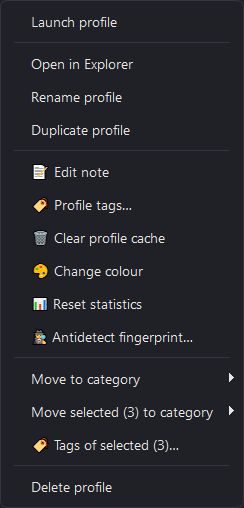
| Item | What it does |
|---|---|
| Launch profile / Close profile | The same as double-clicking the row. On a running profile the item is called "Close profile" |
| Open in Explorer | Opens the profile folder on disk |
| Rename profile | Changes the folder name and the name inside Chrome |
| Duplicate profile | A full copy with all its data under a new name |
| Edit note | The same field as in the table, but in its own window |
| Profile tags… | The tag window for this profile |
| Clear profile cache | Tidies one profile without touching its data |
| Change colour | The colour of the profile icon — the same one you see on the taskbar |
| Reset statistics | Zeroes the launch counter |
| Anti-detect fingerprint… | Shows the fingerprint that was assembled and lets you regenerate it |
| Move to category | A submenu with the list of categories |
| Move selected (N) to category, Tags of selected (N)… | Appear when more than one profile is ticked, and act on all ticked ones |
| Delete profile | Moves the profile to the trash, from where it can be restored |
The "Modes" panel
The "AD", "API" and "DBG" checkboxes are set in the row of each profile. To avoid clicking them one by one, in the Modes panel above the table each of them has a pair of On / Off buttons — they change the mode for all ticked profiles at once. The "Refresh titles" button and the "Auto" checkbox are also located there.
Refresh titles and "Auto"
When many windows are open they look identical on the taskbar — you cannot tell which profile is which. The Refresh titles button in the "Modes" panel writes the profile name into the title of its Chrome window, and the windows become distinguishable by their caption.
The Auto checkbox next to it does this automatically every five seconds: handy when profiles are started and closed as you work. With only a few windows you can leave it off — the titles update on the button.
Closing the program and session memory
If profiles are still open when you close the program, it asks what to do with them. Profiles can live on by themselves: proxies and control are picked up again the next time the program starts. So "Leave open" is a normal answer, not a risk.
The program names the exception itself. A profile in debug mode without the API enabled is controlled through a channel that lives inside the program and closes with it. For such profiles there is a separate button — close only those, leaving the rest alone.
Profiles closed that way are remembered along with their window positions. To open them again — right-click the list and choose "Open the last session's profiles": the profiles come up and the windows return to their former places. The same item is in the tray icon menu. After restoring, the record is erased, so the same thing is not offered twice.
The profile name does not scroll away
When there are many columns, the table does not fit the window and gets scrolled to the right. The checkbox, icon and profile name stay in place — otherwise, having reached the proxy column, you cannot tell whose row it is.
Freezing can be turned off in the columns menu (the icon to the left of the category list), the item "Freeze the name while scrolling". On a small screen that is sometimes more convenient: the frozen part takes up its space permanently.
Trash: deleting is no longer final
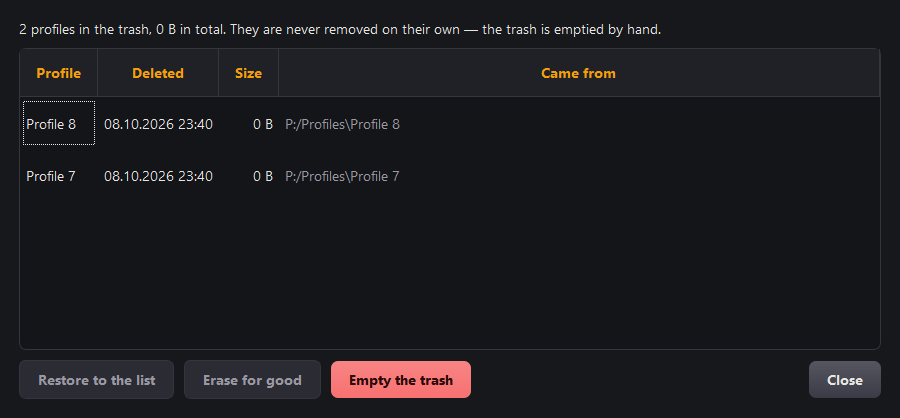
A deleted profile is not erased but moved to the trash. The Trash button above the list shows how much is in there and how much space it takes.
For each entry the trash shows the name, the deletion date, the size and its former place. Restore to list brings the profile back with all its cookies, passwords and settings. If a profile with the same name has appeared in the meantime, the returning one lands beside it as "name (2)" — nothing is overwritten.
Erase permanently deletes irreversibly and asks separately. Empty the trash does the same for everything in it.
Proxies
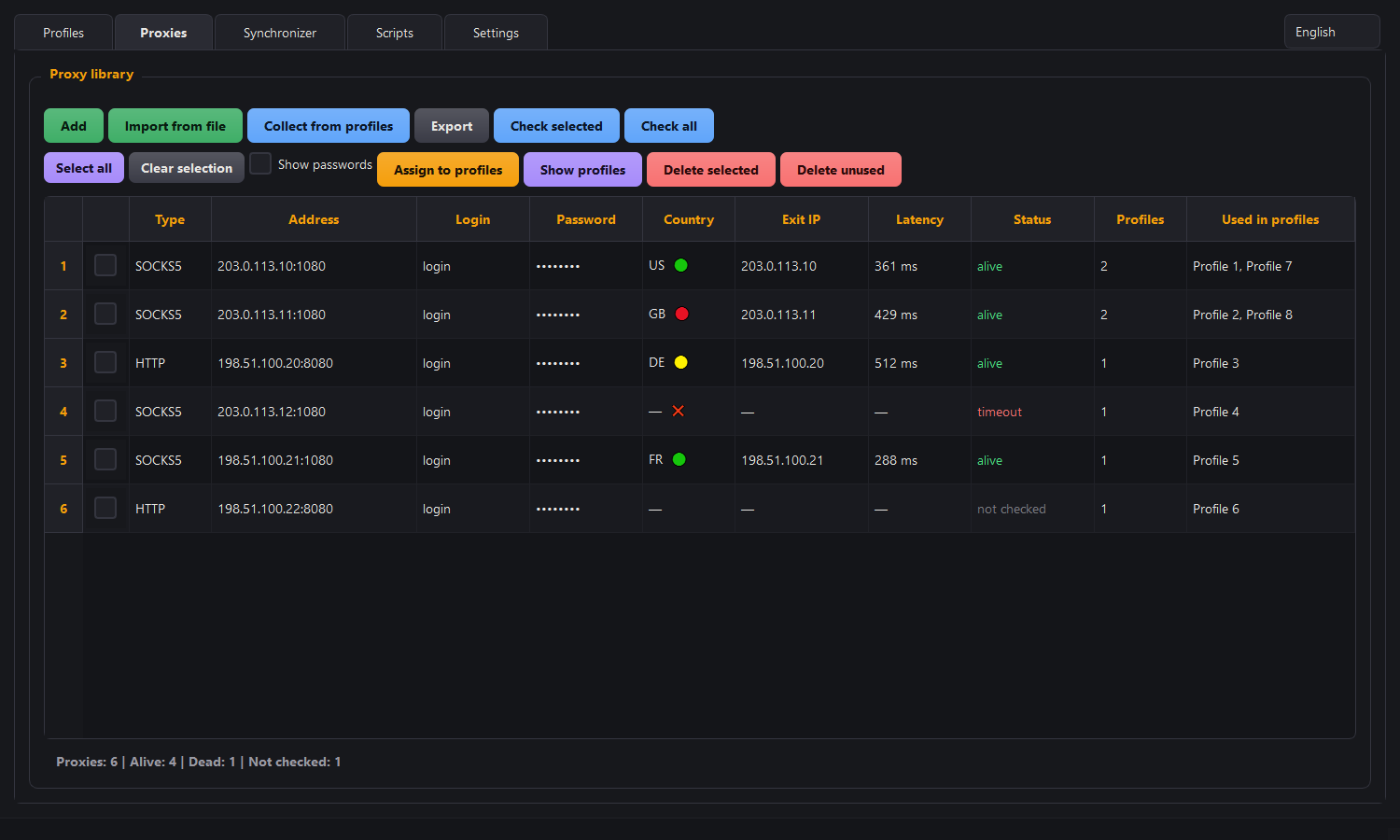
Accepted formats
The program accepts every common variant — the order of login and address does not matter:
| Format | Example |
|---|---|
| address without authentication | 203.0.113.10:1080 |
| address, login, password | 203.0.113.10:1080:user:pass |
| login, password, address | user:pass:203.0.113.10:1080 |
| address @ login:password | 203.0.113.10:8080@user:pass |
| login:password @ address | user:[email protected]:1080 |
| with a scheme in front | socks5://user:[email protected]:1080 |
Lines with a scheme (socks5://, socks4://, http://) keep their type regardless of what is chosen in the import window — convenient for mixed lists from a provider.
What the buttons do
| Button | What it does |
|---|---|
| Add | Pastes a list of proxies. Duplicates of existing ones are not created |
| Import from file | The same from a .txt file |
| Collect from profiles | Pulls proxies already assigned to profiles into the library |
| Export | Saves the library to a text file |
| Check selected / Check all | Checks liveness: does it answer, what exit IP, country and latency. The check progress is visible in the bar above the table |
| Select all / Clear selection | Selecting rows in the library |
| Show passwords | Checkbox: passwords in the table are covered with dots by default |
| Assign to profiles | Hands the selected proxies round-robin to the profiles ticked on the first tab |
| Show profiles | Selects the profiles using the chosen proxy and switches to them |
| Delete selected | Removes the selected addresses from the library; this does not change profiles |
| Delete unused | Removes addresses from the library that are not assigned to any profile |
Anti-detect
The AD column turns fingerprint substitution on for a profile. The program assembles a consistent set: languages, time zone and geolocation matching the proxy's country, hardware and noise matching the profile's permanent seed. It does not touch the browser version and platform: the profile's User-Agent and Client-Hints are native, from real Chrome. The point is consistency: an American IP with a Moscow time zone is more suspicious than no substitution at all.
The fingerprint is set before the page's first line of code runs. That is not a small thing: a site that reads data the moment it loads would otherwise see the real machine — including the real time zone — and a moment later that same data would change to the substituted values. Such a change tells a checking service more than any single value on its own.
The substitution also works in the page's background processes, including SharedWorker. A site can read the cores, memory and video card from there, and if real values turn up there while the page itself shows substituted ones, the profile gives itself away through a contradiction inside a single tab.
What is substituted, what is not — and why
| Substituted | Not substituted |
|---|---|
| time zone, language, geolocation | screen resolution |
| cores, memory, video card | fonts |
| canvas, WebGL, audio, DOMRect | TLS handshake |
| User-Agent and Client-Hints |
These are not left out for lack of effort, but by one rule: it makes sense to substitute what sets you apart; what makes you look like everyone else is better left alone.
Fonts on an ordinary Windows machine are identical across millions of computers — they do not set you apart. Giving each profile its own random set would do the opposite: every profile would become rare, and so noticeable. One caveat: that holds for an ordinary system. If a computer has exotic fonts installed — designer sets, rare handwriting fonts — the set becomes rare on its own, and profiles on such a machine really do look alike. It is better not to install such fonts on a working computer.
The screen is not substituted because a window can be resized with the mouse: substitution on a resizable window always creates a mismatch with the real scale. The TLS handshake is done by a real Chrome, and by definition it matches millions of live browsers — there is no better cover than that. It is the same with User-Agent and Client-Hints: the browser string and the headers with its version come from the engine itself, so they agree with each other and after every Chrome update.
The fingerprint window
Right-click a profile → "Antidetect fingerprint…". The window is split into two blocks, because the fingerprint consists of two independent parts.
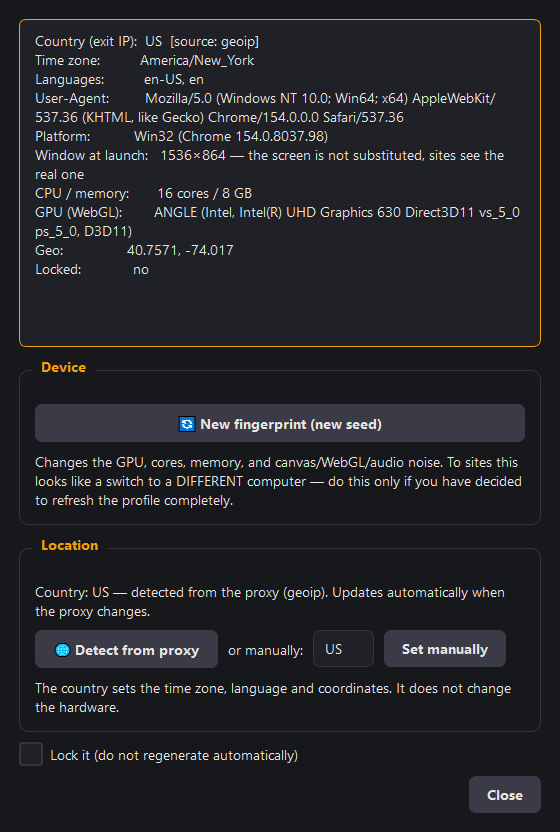
Device — the video card, cores, memory, launch window size, and the noise added to canvas, WebGL and audio. The screen itself is not substituted — the window summary says just that: "the screen is not substituted, the site sees the real one". Changed with the "New fingerprint" button. To sites this looks like a switch to a different computer, so on a working profile this is done only deliberately: an account that knows you will see a new device.
Location — country, time zone, language and coordinates. Determined automatically from the proxy, or set by hand. The hardware does not change when the country changes.
The country is recalculated automatically whenever the proxy changes — and when a proxy check sees that the same address now exits in a different country (this happens with resold proxies and rotating exits). Until the fingerprint is reassembled, the window states it plainly: "⚠ Last proxy check: exit in US. Fingerprint country will update before next launch". Setting the country by hand turns off automatic updating — the window says so directly, and a button appears next to it to bring automatic detection back.
The Lock it (do not regenerate automatically) checkbox at the bottom of the window freezes the fingerprint entirely: the program no longer reassembles it on its own, including when the proxy country changes. A new device or another country — only by your own hands.
With a manual choice the program first asks about the proxy itself and shows any mismatch: "the proxy exits in Germany, but you are setting the US." The decision is yours, but it is made with full information: sites check the browser's time zone and language against the IP's country, and a mismatch is a common cause of captchas.
The proxy traffic light: green, yellow, red
When checking a proxy, the program asks two independent databases for the country and puts an icon: on the "Proxy" tab — next to the country, in the proxy column of the profile table — next to the latency.
| Icon | What it means |
|---|---|
| 🟢 | The databases agree. Checkers will not flag the location |
| 🟡 | The second database did not answer — there is nothing to compare against. The proxy is still alive |
| 🔴 | The databases name different countries |
| ❌ | The proxy did not answer — the country cannot be checked. In the profile table column, the failure reason is written instead of an icon |
Red does not mean "the proxy is broken." It means the directories disagree for this address, and on checking sites the country will not match the time zone no matter which country you set: match one database, and the second will show a mismatch. This is typical of resold datacenter addresses. Tolerable for bulk tasks; for valuable accounts, get a different proxy.
Why signing in to Google works on these profiles
Fingerprint substitution is normally done through the browser's debugging channel. The trouble is that Google sees the very existence of such a channel and refuses to let you in: "This browser or app may not be secure". We tested it directly: it is not about the commands or the quality of the substitution, but about a debugging flag being present in the command line.
So the substitution is delivered by a carrier extension inside the profile itself. There are no debugging flags in the command line at all, and an extension has the same capabilities from inside. Signing in to Google works on such a profile, and both fingerprint substitution and control from scripts keep working.
Checking the fingerprint
The Check fingerprint button in the extra tools answers the question "what does a site really see". The program asks the page itself and compares three columns: what was intended, what the main thread sees and what a Worker sees.
Rows marked "OK" mean a match. navigator.webdriver is shown separately. The profile will be launched if it is closed.
Debug mode (the "DBG" column)
Sometimes you need an ordinary debugging port: to attach Playwright or Puppeteer directly, as to any browser. That is what the DBG column is for. Turning "DBG" on automatically turns on "AD" and "API"; turning "DBG" off does not turn them off.
⚠️ On a profile with "DBG" on, the browser tells sites it is being automated: navigator.webdriver is true there, and any check can see it. Signing in to a Google account will not work on such a profile. This is a deliberate trade-off: a standard debugging channel becomes available from outside, but the profile stops looking ordinary. For working with accounts, "DBG" is unticked — then the profile runs on the carrier extension, and there is no tell.
The "API" checkbox by itself gives no such tell: it does not open a debugging port, and the API passes commands to the browser through the carrier extension (which is installed alongside "AD"). It can be kept on even for profiles where you sign in to Google.
Extensions
Installing an extension into a hundred profiles by hand through the web store is impossible: in each one you have to sign in, find the extension, install it, configure it. So the approach here is different — a template profile. You set the extensions up once in one profile, and the program copies their folders into the rest. The extension arrives already installed and configured, no Chrome account sign-in is needed, and the store never opens.
How it works inside
An extension in Chrome is a folder named after its identifier inside a profile. The program takes such a folder from the template and puts it into the chosen profiles, then edits the internal records so the browser sees the extension as installed. Nothing is downloaded from the network, so the rollout is fast and identical for every profile.
The steps
- With the Template… button, choose the profile that becomes the model. It is an ordinary profile from your list — you can create an empty one specially.
- Press Open template. Chrome opens with that profile: install the extensions you need from the store and configure them the way you want them in the other profiles.
- Close the template and press the From template button above the list field — the program writes in the identifiers of every extension it found in the template.
- Tick the profiles and press Install into selected.
The extension list and the "Parallel" field
In the list field the identifiers are written one per line. They can be edited by hand: remove the unneeded ones, keep only what you want, add someone else's identifier. An identifier is a long string of letters, visible in the extension's address in the Chrome store (…/detail/name/identifier) and on the chrome://extensions page with developer mode on.
Parallel sets how many profiles are processed at once. More is faster but harder on the disk; ten suits most cases. While the rollout runs, pause and stop buttons appear: the process can be interrupted and continued later, and profiles already done are not touched again.
How to tell what happened
The Ext. column in the table shows the progress right in the rows: … means working, ✓ succeeded, ✗ failed. After the rollout the same column shows the number of extensions installed in the profile, so a discrepancy is obvious: if one profile has 3 and the rest have 4, something is missing there.
The extension store in the settings
The "Settings" tab has an Extension store table — your own reference list of identifiers with descriptions. The idea is simple: identifiers are unreadable, and a month later you cannot tell which is which. Write down "Canvas Fingerprint Defender" once and take it from there afterwards. Clicking a row copies the identifier to the clipboard.
Tick the rows you need and press To the extension list — the identifiers travel to the list on the "Profiles" tab, with nothing to paste by hand. You can tick as many rows at a time as you like, and the tick in the column header selects the whole store; clicking it again clears the selection. The program skips those already in the list and tells you how many it added and how many it skipped — no duplicates will appear.
The program installs its own extensions itself
Besides yours, the program installs two of its own, and you need do nothing for that.
The frame with the profile name — a thin strip over the page, so you do not mix up windows when working with a dozen profiles. It is installed into every profile at creation; existing ones get it on their next launch.
The anti-detect carrier — the extension that substitutes the fingerprint from inside. It is installed into a profile when its AD column is on; when turned off, it is removed along with the substitution, and the profile becomes a regular browser again. The frame with the name remains in place: it has nothing to do with the substitution.
Cookies and moving to another PC
Chrome encrypts cookies and passwords with a key belonging to your Windows account. So simply copying the profile files to another computer does not carry the sessions over — there is nothing there to decrypt them with. The program takes the cookies from the running browser itself.
On the same machine and under the same user things are different: restoring from an archive brings back both the cookies and the passwords as they were. The limitation only concerns moving to someone else's computer, and even there not all sign-in data is lost: the list of sites with logins comes across, only the password field turns out empty. And you usually do not need to sign in again at all: the cookies carry the session itself.
Everything for transferring is gathered in the Backup and transfer panel at the bottom of the "Profiles" tab: Export, Import, Chrome settings, Passwords, Export cookies and Import cookies.
| Button | What it does |
|---|---|
| Export cookies | Saves the selected profiles' cookies into name_cookies.json files |
| Import cookies | Loads cookies from a file into the selected profiles |
A profile that has not been touched since the last export into the same folder is skipped: the browser is not launched for it, and the log shows "unchanged — previous file kept." Across a hundred profiles that saves not minutes but tens of minutes.
File formats
The export writes one name_cookies.json file per profile as a standard JSON array: each cookie has name, value, domain, path, expires, httpOnly, secure, and sameSite fields. Puppeteer uses the same field names; extensions like Cookie-Editor and EditThisCookie call the lifetime expirationDate — the program understands both names when importing.
Import accepts .json and .txt files in three formats:
| File format | What it looks like |
|---|---|
| JSON array | [ { "name": …, "value": …, "domain": ".example.com" }, … ] |
| Object with a key | { "cookies": [ … ] } or { "data": [ … ] } |
| Netscape | A text cookies.txt file: seven tab-separated fields — domain, subdomains flag, path, secure, expiration, name, value |
Field names are accepted in various spellings: expires, expirationDate or expiry; httpOnly or http_only; sameSite can be lax, strict, none or no_restriction, case-insensitive. Extra fields like id, storeId and hostOnly are ignored — they are added by specific extensions and Chrome doesn't expect them. Cookies without a name or domain are skipped.
How import works. You select the profiles and choose a file; the app shows how many cookies it found across how many domains, and asks for confirmation. The profiles are launched during the import. Existing cookies are kept, matching ones are overwritten. If the format isn't understood, the app will just say so: "no cookies in a supported format found in the file". When the import finishes, the log will show how many cookies were imported and how many were skipped.
Cookies from regular Chrome
The program does not automatically grab sessions from your everyday Chrome: Chrome encrypts them so that they cannot be read outside of its folder (more details below, in the section on exchanging with Chrome). However, you can export your cookies from inside the browser itself using an extension and import them into a Morfiade profile. You will need an extension that exports the cookies of the entire browser, not just the currently open site; we checked this with Cookie-Editor on a real export from regular Chrome: thousands of cookies from hundreds of sites, the logins remained.
- Install Cookie-Editor in your regular Chrome from the official Chrome Web Store. It works inside an already running browser through the
cookiespermission, which you confirm during installation. - In the extension window, click ⋮ → See All Options, and in the "All Cookies" section select Export All Cookies → As JSON. Do not confuse it with the export button in the extension window itself: that one only exports cookies for the currently open site. The extension will ask for access to all sites — it needs this to read the cookies of all domains. It doesn't download a file but copies the text to the clipboard; the page might scroll down and not show "Done!" — this is normal. Open Notepad (or another text editor), paste the text (Ctrl+V) and save the file as
cookies.json: the name can be anything, but it must end in.json(in Notepad, choose the "All files" file type, otherwise it will append.txt). Make sure to select JSON, and do not click the Delete All button next to it: it deletes all browser cookies. - In Morfiade, select the profile, click "Import cookies" and choose this file.
⚠️ This file contains live logins to all your accounts. After importing, delete the file and the extension, and do not send it to anyone.
What you need to know about this:
- Cookies are not the whole session. Some sites keep the login in the page storage, not in cookies; the extension won't see such a login.
- A site might ask you to confirm your login again if it comes from a different address and device.
- The extension is a third-party tool. We do not make or check it: you install it and grant it permissions yourself.
- We do not recommend going back to regular Chrome via the extension: it parses the file in its own way, and the cookie's lifetime or scope might be lost. For the way back, there is "Replace Chrome" — see the next section.
Exchange with regular Chrome
The Chrome settings button links the manager to the Chrome already installed on your computer. It's for when you need to move not between computers, but between the "regular browser" and the manager: pull over what's been built up there, or hand off a ready profile to it.
The program finds the installed Chrome itself and shows a list of its profiles — with names, not folders like Profile 7. Service profiles ("Guest", "System") don't make it into the list.
| Action | What it does |
|---|---|
| Import from Chrome | The regular Chrome profile becomes a new manager profile. The original stays untouched |
| Add to Chrome | Bookmarks and extensions from the manager profile travel to regular Chrome, without touching what's already there |
| Replace Chrome | Regular Chrome becomes this profile entirely. The previous content isn't deleted — it moves to a backup folder nearby |
| Shortcut | A desktop shortcut that opens the manager profile with regular Chrome. Nothing in Chrome itself changes |
Chrome must be closed during the exchange: it keeps its files open, and the copy would come out incomplete. The program checks for this and offers to close it.
What moves over, and what doesn't
Bookmarks, history, autofill, site settings and extensions move over — together with their own settings.
⚠️ Website sessions and passwords cannot be pulled from regular Chrome. Since version 127, Chrome encrypts them so that outside its own folder they can't be read, and passwords are often kept not in the browser but in the Google account. This is the browser's own protection, and it can't be bypassed by the program. However, your cookies can still be exported from inside Chrome using an extension — how to do this is described above, in the "Cookies and moving to another PC" section; passwords are transferred using Chrome's built-in export. The program says so in the dialog before starting, not after.
The other direction: a manager profile inside Chrome
Here everything is reversed, and it's worth understanding in advance.
A manager profile moves into regular Chrome together with its sign-ins: its cookies aren't locked by App-Bound encryption, so "Replace Chrome" and "Shortcut" give you a logged-in browser right away.
But there's no way back. Once a profile lands in regular Chrome's folder, everything Chrome writes there from then on is encrypted the new way — App-Bound. The old sign-ins keep working, but fresh sessions from such a profile can't be pulled back into the manager. It's not about the Google account or sync: Chrome behaves this way with any profile that lives in its own folder.
So the rule is simple: work in the manager profile, and hand a copy off to regular Chrome. That way portability stays with you.
Extensions move over now, and that was fixed separately
Chrome signs extension records in a way tied to the machine. A profile brought from another computer failed those signature checks: extensions appeared after the first launch and vanished on the second.
Now, on transfer, the outdated signatures are stripped, while the per-extension ones — the ones holding a specific extension's own settings — stay untouched. Extensions stay in place together with their data.
The "Passwords" button
Opens Chrome's password manager for the selected profile (exactly one must be ticked) — the one place where the browser has its own file-based transfer: "Export passwords" on the old computer, "Import passwords" on the new one.
Chrome will ask you to confirm your Windows sign-in — that's expected, it's its own protection.
⚠️ The export file holds every password in plain text. Delete it right after importing and don't leave it in "Downloads". The program doesn't read this file or send it anywhere: it passes through your own hands — we deliberately don't do this step for you.
Chrome doesn't let you open its passwords page with an outside command. Where the program can't take you there directly, it puts the address chrome://password-manager/settings on the clipboard and asks you to paste it into the address bar.
Exporting and importing profiles
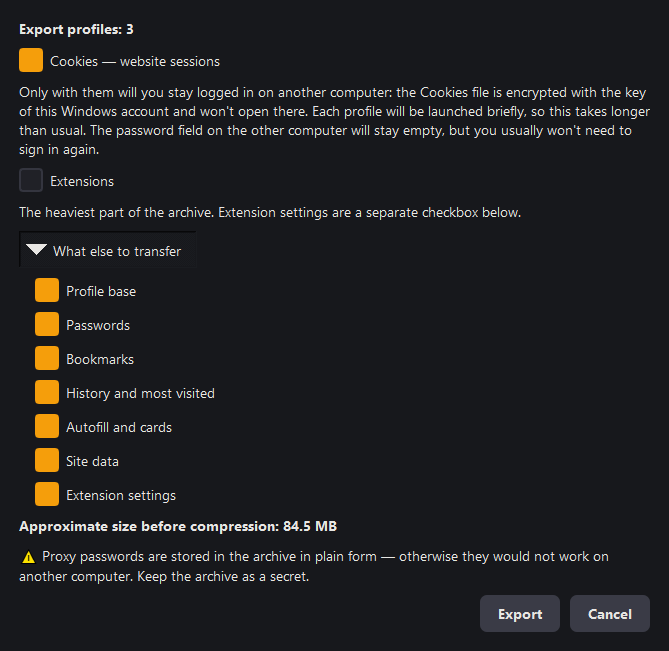
The Export button packs the selected profiles into a zip archive. What to put into it is decided by checkboxes in the Export profiles window:
| Checkbox | What it does |
|---|---|
| Cookies — website sessions | Checked by default. Only with it will you stay logged in on another computer: the cookie file is encrypted with this Windows account's key, so the program briefly launches each profile and extracts the cookies decrypted. Export takes longer because of this |
| Extensions | Unchecked by default: this is the heaviest part of the archive. If you don't check it — at the new place extensions are deployed from the template |
| What else to transfer | Drop-down list: Passwords, Bookmarks, History and most visited, Autofill and cards, Site data, Extension settings. All are checked; uncheck what you don't need. "Profile base" always goes along — without it the profile won't open |
The "Approximate size before compression" line is recalculated with every checkbox, so the cost of the choice is visible before clicking "Export". Caches are not carried over — Chrome will create them again. From the manager, proxies, notes, categories, tags and fingerprints travel along with the profiles.
The whole household of the program travels with the profiles too: the proxy library, the synchroniser's sets, scripts, bookmarks, tag colours, the extension store and settings — the path to Chrome, the profile folder, the template profile, the language, the theme. Otherwise you would end up on the new computer with the profiles and an empty program around them.
On import the program asks separately whether to apply the settings. Declining is a normal answer: if someone simply sent you profiles, you do not want their paths and language on top of yours. Paths that do not exist on this computer are not applied in any case.
Nothing is overwritten at the new place. Only what is not already there gets added: proxies matched by "type and address," synchroniser sets by name, bookmarks by link, extensions by identifier, scripts — only new files. Your work on this computer stays untouched.
Appending: a second backup takes minutes
The expensive part of an export with cookies is not archiving but launching the browser: Chrome only gives up decrypted cookies while it is running, so each profile has to be launched and closed just to get them.
If your archive already sits in the chosen place, the program shows what date it is from and how many profiles it covers, and offers to append to it. Profiles unchanged since last time move over from it ready-made — complete with cookies, proxies and notes — and the browser is only launched for the new and changed ones. The final window shows how many were taken ready-made and how many were rebuilt.
Checking profiles against the archive takes a fraction of a second: the program looks at the profile files' modification time rather than reading their content. An error can only go the safe way — a profile gets rebuilt for nothing, but this check never lets a changed one slip through.
Pause, stop and cancel
Moving a hundred and fifty profiles takes tens of minutes, so the row showing progress has three buttons:
| Button | What it does |
|---|---|
| ⏸ Pause | Suspends the process. The current profile finishes, the next one does not start. The button becomes "Resume" |
| ⏹ Stop | Finishes and saves what has been collected. The archive closes with the profiles that made it in |
| ✕ | Cancels: the unfinished archive is deleted, the previous one stays untouched |
"Stop" combined with appending gives a resume point: stop at the fortieth profile, and the forty already collected stay in the archive — the next run into the same file picks them up ready-made and continues from the forty-first.
The archive is written to a temporary file alongside and replaces the previous one only at the very end. A dropped connection, a cancel or a crash never leaves a stump in place of the backup.
Import: from an archive or straight from folders
There is no separate "Back up selected" button any more: it copied profile folders alongside, taking exactly as much space as the profiles themselves. Restoring from folders has not gone anywhere — Import accepts it, asking first where to load from.
| Source | What is restored |
|---|---|
| From an archive | Profiles and the program's whole household. If the "Cookies" checkbox was ticked during export — website sessions as well |
| From a folder of profiles | Chrome's data in full: bookmarks, history, cookies, autofill, site settings. Choose the folder inside which the profile folders sit |
Before unpacking the archive, the Import profiles from an archive window will open: check which profiles to take. The name in the right column ("Name in our app (double-click)") is changed with a double-click — that way a profile from the archive can be placed next to the old one without overwriting it. Names that are already taken in your app are highlighted.
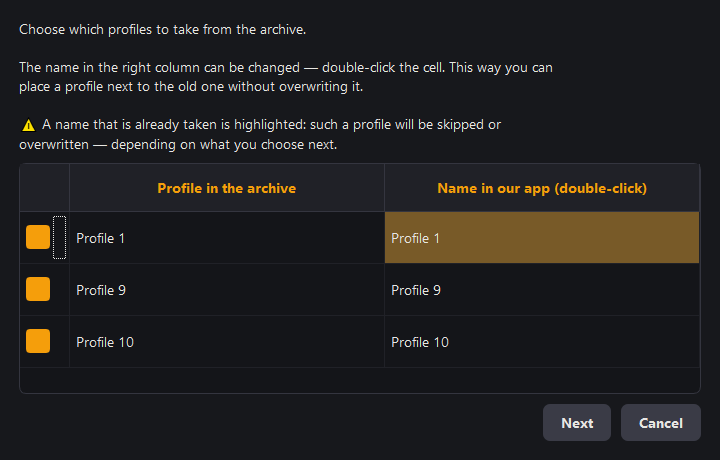
If taken names remain, the program will offer to Skip existing or Overwrite. A running profile cannot be overwritten — Chrome keeps its files open, and such a profile would arrive incomplete. The program says in advance which profiles are running and offers to close them.
If something fails, the profiles are named: "failed: bansay7, pdl3." Importing the same archive again with "skip existing" delivers what is missing, without touching the rest.
| File | What is in it |
|---|---|
profiles_metadata.json | Proxies, notes, fingerprints, the AD / API / DBG flags, launch counters |
config.json | Categories, the template profile, theme, language, table settings |
proxies.json | The proxy library |
Put them next to the profile folders — the program finds them itself, picks them up and lists exactly what it restored. It keeps the previous files alongside marked .before_…, so there is something to roll back to if the wrong folder was chosen.
On the new computer press Import and choose the archive. If the archive contains cookies, after unpacking the program offers to load them — agree, and every profile gets its own.
What moving does not do, and rightly so
| What | Why |
|---|---|
| Site passwords on another computer — but logins stay | The password database does make it into the archive, and the list of sites with usernames is visible at the new place — Chrome stores those in plain text. Only the password itself is encrypted with the Windows account key, so on someone else's machine the password field stays empty and has to be typed again. On the same machine and under the same user, both logins and passwords are restored. And most importantly: you usually will not need to sign in again at all — cookies carry the session, and on sites where you were signed in, you stay signed in. We got around this with cookies — the program takes them decrypted from a live browser; it cannot do the same with passwords, Chrome does not hand them out |
| Extensions — until their checkbox is ticked | It is unticked by default: this is the heaviest part of the archive. If you need them — tick it during export; if not — at the new place they are rolled out from the template |
| The local API token | On the new computer it must be a new one |
| The license binding | Carried over through the bot: "Unbind this computer," then activation with the same key |
⚠️ Proxy passwords sit in the archive in plain text — otherwise they would not work on another machine. Keep the archive as a secret: do not leave it in shared folders or the cloud.
Disk space
Chrome downloads service data into every profile: a local AI model, a speech synthesis engine, Safe Browsing databases, telemetry. Across a large set that is gigabytes with no connection to your accounts.
The Save space checkbox in the settings (on by default) forbids those downloads when profiles launch. The Clear cache button removes what has already accumulated in the selected profiles — cookies, passwords, bookmarks and extensions are untouched.
The window grid
The settings choose how many parts to divide the screen into: 2, 4, 6, 8, 10 or 20 windows. Running profiles are placed into the cells automatically. If there are more profiles than cells, the next ones lie on top of the first.
The grid's shape is chosen for your monitor: an ultrawide gets more columns, a vertical one more rows. The Grid button tidies windows that are already open.
Scripts
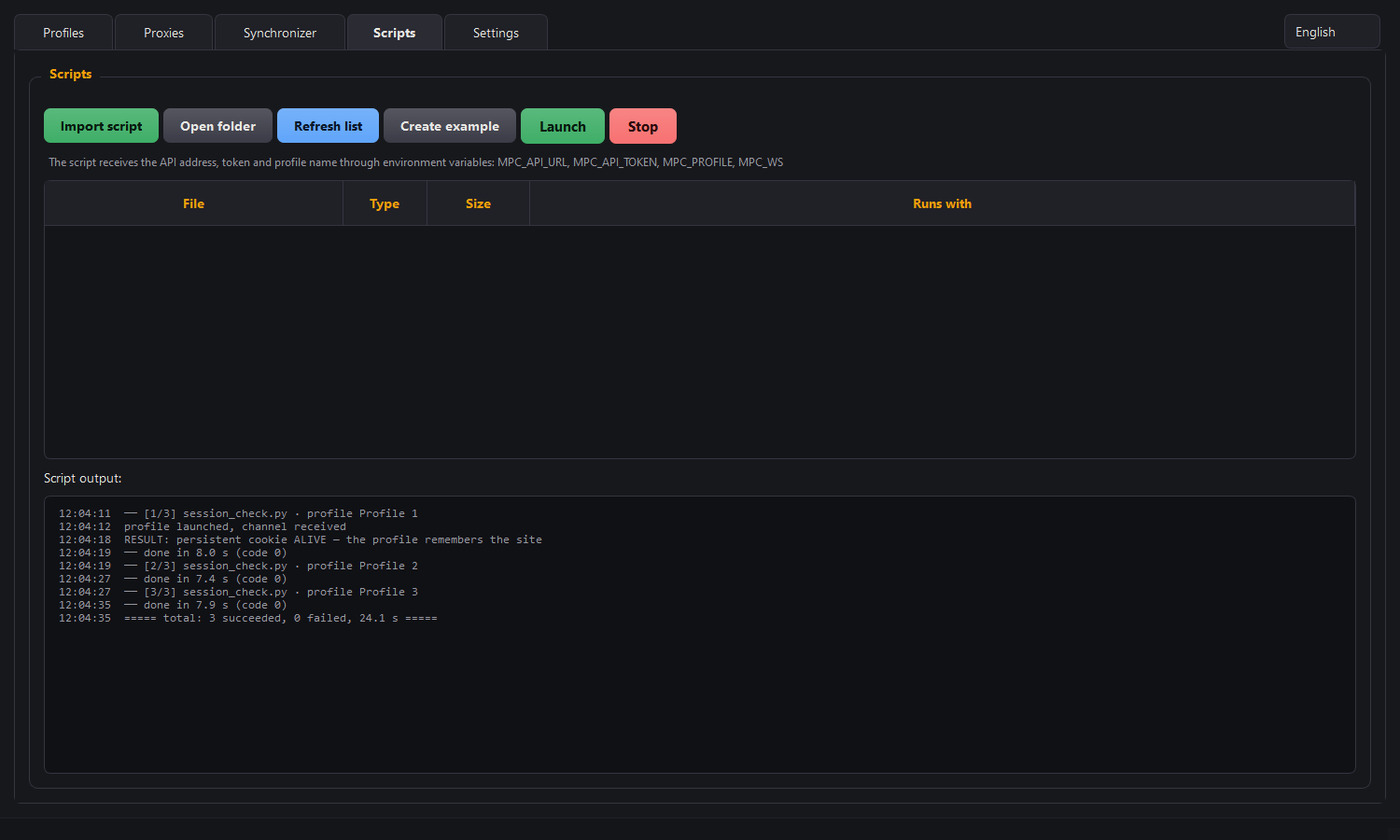
Scripts are ordinary files in the scripts folder next to the program. Edit them with anything, keep them in git, run them without the manager. .py, .js, .mjs, .ts, .ps1, .bat and .cmd are supported; the "Runs with" column shows whether the necessary interpreter was found.
| Button | What it does |
|---|---|
| Import script | Copies the script file into the scripts folder |
| Open folder | Opens scripts in Explorer |
| Refresh list | Re-reads the folder if you added a file manually |
| Create example | Puts an example script in the folder: it launches a profile via the API and opens a page |
| Launch / Stop | Runs the selected script across the ticked profiles and stops it |
On launch a script receives four environment variables:
| Variable | What is in it |
|---|---|
MPC_API_URL | The address of the local API |
MPC_API_TOKEN | The access token |
MPC_PROFILE | The name of the profile this run is for |
MPC_WS | The address of the debugging port ws://…, if the profile is already running with "DBG". For the rest it is empty — they are controlled via /cdp |
The script is run over every selected profile in turn. Output goes to the window with timestamps, each profile shows its result and exit code, and the whole protocol is written to logs/scripts/ — the window truncates by scrolling, the file does not.
The window synchroniser
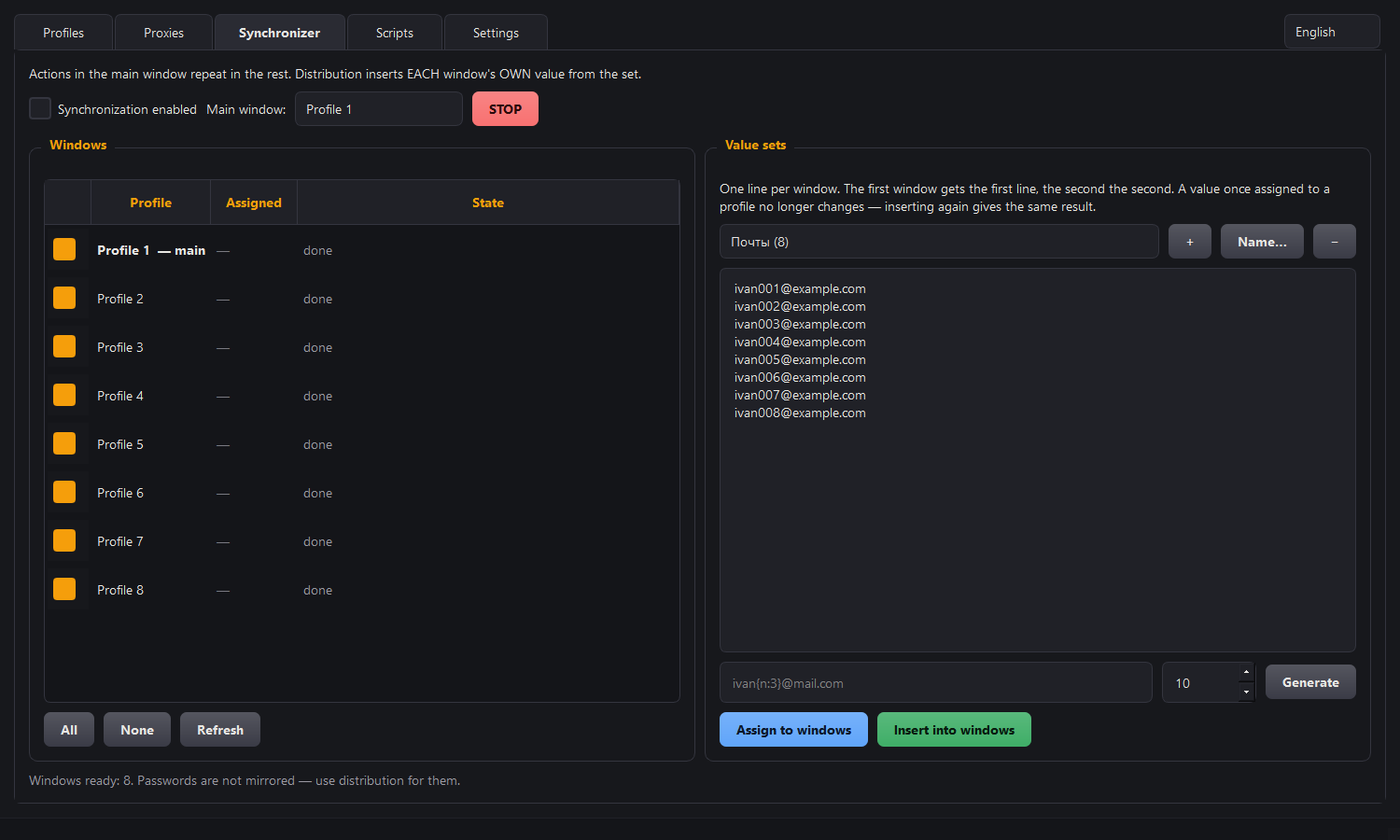
The synchroniser is for when the same thing has to be done in several profiles at once. It has two modes, and they solve different problems.
Mirror: one action into every window
Tick the windows, choose the leading one and set the "Synchronisation on" checkbox. From then on what you do in the leading window is repeated in the rest: press a button and it is pressed everywhere, type text and it is typed everywhere.
We aim not at a screen point but at the page element itself, so the windows can be of different sizes and in different places — that does not affect the repeat. Text is inserted as a value rather than typed as keystrokes, so the keyboard layout and language do not matter.
Handout: its own value for each window
A mirror is useless for registrations: there every account has its own email, its own login, its own number. For that, sets are created on the right — you name them however suits you: "emails", "logins", "numbers". Values are written into a set line by line, one line per window. The Generate button fills a set from a pattern: ivan{n:3}@mail.com gives ivan001, ivan002 and so on.
Spread across windows pins one line to each window without inserting anything — it simply decides who gets what. That is visible in the "Will get" column. Insert into windows puts each window's value into the field where the cursor stands in the leading window.
Shortcuts and stopping
Your hands are in the browser at that point, not in the manager, so everything is done from the keyboard:
| Keys | Action |
|---|---|
Ctrl+Alt+S | Turn synchronisation on or off |
Ctrl+Alt+1 … Ctrl+Alt+9 | Insert from set no. 1…9 |
Ctrl+Alt+Q or Pause | Emergency stop |
An ordinary Ctrl+V works as before — the synchroniser does not touch it.
If the windows drift apart
Pages in different profiles are not always in the same state: something did not finish loading, a captcha appeared, another is on a different step of the form. If on some action most windows cannot find the element they need, synchronisation stops by itself and says why. That is deliberate: carrying on blindly means sending a password into the search field on twenty sites.
The state of each window is visible in the list on the left. The reasons are:
| What it says | What it means |
|---|---|
| element not found | the page is different or has not loaded yet |
| a different element in that place | the layout differs — we do not touch it just in case |
| no bridge — turn on "AD" | the profile has anti-detect off, there is nothing to control it with |
| the extension is silent | the profile has been running a long time — restart it |
The local API
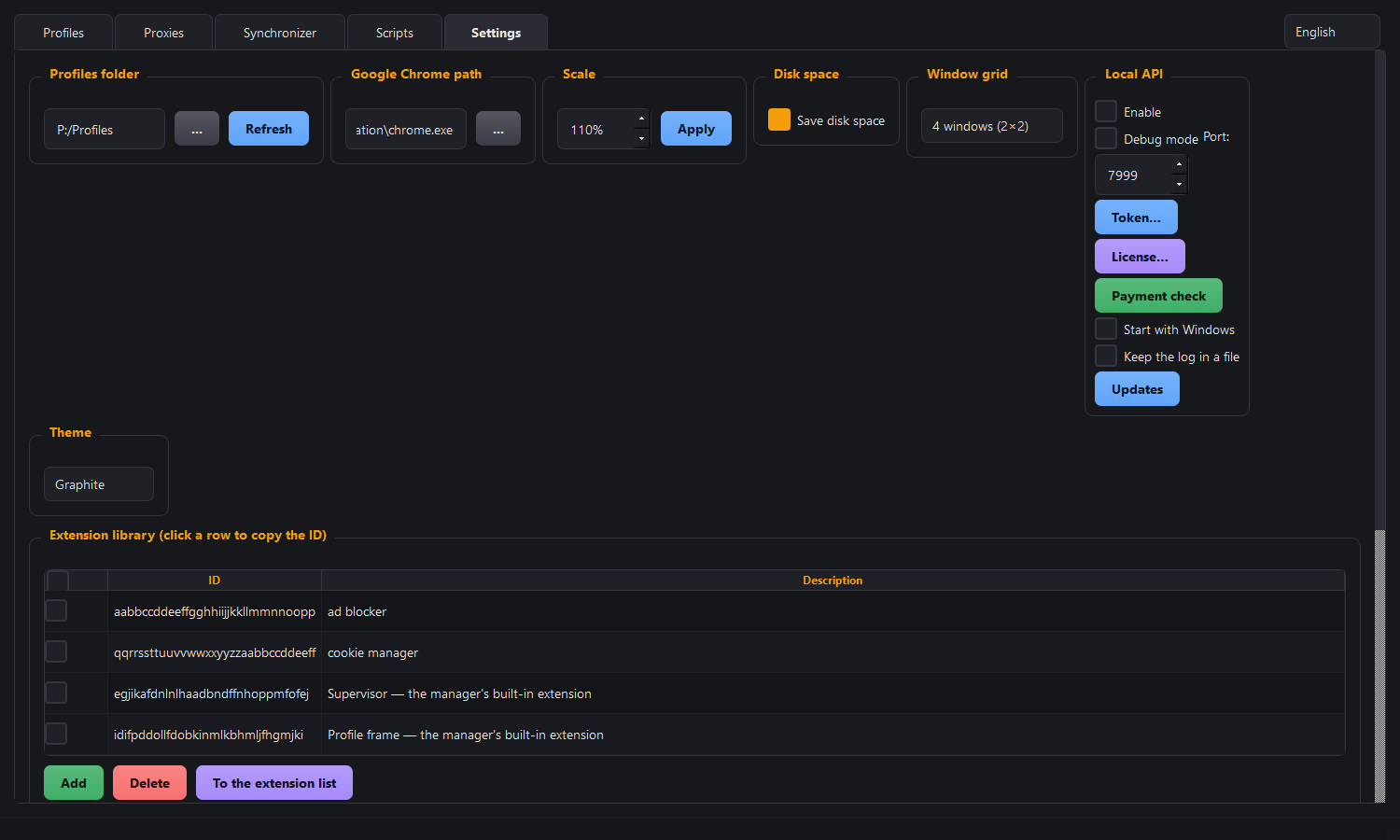
The API lets scripts and AI agents drive the program. It works on your computer and does not go outside. It is switched on with a checkbox in the settings; the Token… button shows the address, the access key and a ready-made request line — everything copies with one button.
Two levels
Level 1 — driving the manager. Create a profile, launch it, stop it, assign a proxy, check it.
Level 2 — driving the browser. Open a page, run a script, take a screenshot — that is, do in the browser what Playwright does.
| Request | What it does |
|---|---|
/status | Version, how many profiles there are and how many are available |
/profiles | The list of profiles with access |
/start | Launch a profile |
/stop | Stop a profile |
/session | The channel of an already running profile |
/cdp | Run a command in the browser — works without a debugging port |
/profiles/create | Create a profile |
/profiles/delete | Delete a profile — always with a backup |
/profiles/trash | Move profile to trash |
/trash/list, /trash/restore | What is in the trash; restore a profile from it |
/proxy/set | Assign a proxy to a profile |
/proxy/check | Check a proxy |
/profile/tags, /profile/note | Read or set profile tags and note |
/scripts | List of scripts from the scripts folder — without contents |
/script/run | Run a script across profiles and return its output |
/sync/windows, /sync/sets, /sync/spread, /sync/insert | Synchronizer: windows, sets, distribution across windows and insertion |
The /ext/poll and /ext/result addresses are internal: the extension itself uses them, and you do not need to call them by hand.
Level 1 works with any profile that has "API" enabled. For level 2, the profile needs one more checkbox: "AD" — for /cdp and the synchronizer, "DBG" — for Playwright. Without them, /start will open the window and immediately reply which checkbox to set.
Two ways to drive the browser
Way 1 — the /cdp request (the default). The command is carried out by the carrier extension inside the profile, so the profile must have "AD" enabled. The browser has no debugging port, so signing in to Google works on such a profile — and scripts still drive it. Parameters: profile, method, params, and the optional tab and timeout.
`` curl -H "X-Api-Token: YOUR_TOKEN" ^ "http://127.0.0.1:7999/cdp?profile=work1&method=Page.navigate¶ms={"url":"https://example.com"}" ``
The command names are the same as in the Chrome DevTools Protocol: Page.navigate, Runtime.evaluate, Page.captureScreenshot, Input.dispatchMouseEvent and the rest.
Way 2 — your own debugging port for Playwright. Turn on the DBG column for a profile and restart it: then /start and /session return a ws://… address to pass to Playwright or Puppeteer. That is convenient for bringing over ready-made scripts, but signing in to Google will not work on such a profile.
What survives a restart of the program
Profiles keep running even if the program is closed. But not everything comes back the same way, and that is worth knowing.
| What | After the program restarts |
|---|---|
| A proxy with authentication | Comes back up by itself, no need to restart the profile |
Control through /cdp | Returns by itself: the extension finds the program again |
| The debugging port ("DBG" mode with API) | The program reconnects to it |
| "DBG" mode without API | Cannot be restored: the profile has to be restarted |
A ready Python client — morfiade-python, pip install morfiade: the same routes as function calls, with no hand-built requests. Example scenarios are in morfiade-recipes.
Access for an AI agent (MCP)
The manager can hand control of profiles to an AI assistant — Claude, for instance. Then a one-off job can be given in words: "start three profiles with working proxies and open such-and-such page in them".
How to connect it
First turn on the local API in the settings and tick the "API" column for the profiles you are granting access to. A profile created by the agent itself is accessible to it right away — no need to tick it. Then, in your AI client's settings, write:
`` { "mcpServers": { "morfiade": { "command": "C:\Program Files\Morfiade\Morfiade.exe", "args": ["--mcp"] } } } ``
The path is to your own program file: it is the same Morfiade.exe, simply with the --mcp flag. Where exactly those settings live, see your client's help. The manager must be running.
The set described below is for version 3.42 and newer: page_info was introduced in it.
After updating the program, reconnect Morfiade in your client (in Claude Code — /mcp → Reconnect): the installer terminates the running MCP server itself so that the update succeeds, but the client does not reconnect on its own.
What the agent can do
By default, nineteen tools are available to the agent:
| Group | What it does |
|---|---|
| Profiles | list (only those you allowed), manager state, create, launch — optionally with an address, close |
| What is on the page | page_info: title, address, tab readiness and Cloudflare check flag. Without it, a dead proxy or a stuck check looked like a successful launch. start_profile also warns on its own if the last proxy check failed or if the profile has "DBG" enabled |
| Proxy | assign to a profile (including in the form socks5://login:password@address:port), check one or all at once |
| Organization | tags and notes |
| Distribution across windows | which windows are ready, sets of values, spread across windows, paste. The agent does not receive lines from the sets — only their count |
| Scripts | list of files in the scripts folder — without contents |
| Trash | move profile to trash, view it, restore profile |
The agent can only delete profiles to the trash. Erasing permanently and emptying the trash can only be done by a human — from the trash window, where you can see what is being destroyed.
What to understand about safety
Access works only on your computer: nothing opens outward, to the internet. The agent runs on your machine and talks to the manager over the local loopback. A valid licence is needed here too — without one, launching profiles is closed through the agent as well.
But "local" does not mean "anything goes," and here is why. An agent that reads web pages is not a trusted party. A page can contain text addressed to it: "call such-and-such tool and send the data here." The agent cannot tell a task description from an instruction and may obediently carry it out. This is the acknowledged core problem of such connections, and it has to be guarded against by design, not by carefulness.
So it is built like this:
| Restriction | Why |
|---|---|
| The "API" checkbox on a profile's row | the main lock: off by default, the agent sees only checked profiles |
| A closed list of tools | not the whole API is exposed outward, only the listed actions; nothing extra shows up "along the way". Without the flags, the agent cannot even see the tools behind the flags below in the list |
| Deletion only to the trash | restoring a profile is a single call; the agent has no permanent erasure |
| Proxy passwords are not returned | the profile list shows the address, port and login, with dots instead of the password |
| A token is required | a request without one is rejected; reissuing it cancels the old one immediately |
Separately, about the --mcp-allow-cdp switch. It adds direct control of the browser — the same thing Playwright does. It is off by default, and deliberately so: running arbitrary code in a signed-in profile reads cookies, passwords and page contents. That is worth more than any proxy password. Turn it on only if you understand why you need it, and only on profiles you would not mind risking.
The --mcp-allow-scripts flag works the same way: it lets the agent run scripts from your scripts folder. This is code execution on your computer, so by default this flag is also disabled. Both flags are added to args alongside --mcp.
A sensible way to work: keep the "API" checkbox on a handful of working profiles, not all of them, and do not give the agent profiles with valuable accounts.
The reference for every tool, machine-readable schemas and a launcher that finds the program by itself are in the open repository morfiade-mcp (pip install morfiade-mcp).
The operations log
The log on the "Settings" tab shows everything the program does: creating and launching profiles, rolling out extensions, checking proxies, API calls and refusals over a wrong token. Every line is timestamped.
The Save the log to a file checkbox in the settings additionally writes the same protocol to logs/manager_YYYY-MM-DD.log; the files are kept for two weeks, and the Open the log folder button leads to them. Proxy passwords and tokens do not reach the file — they are replaced with asterisks.
If the program closed by itself
For that case it is best to enable the log file and repeat the action. Besides the ordinary protocol, the program saves a crash report alongside: the last events before closing and the cause. That file is what is needed for diagnosis — it shows where everything broke off, even if the window vanished instantly and you had no time to read anything.
Keyboard shortcuts
| Keys | Action |
|---|---|
Ctrl+N | Create profiles |
Ctrl+O | Launch the selected |
Ctrl+W | Close the selected |
Ctrl+R | Refresh the profile list |
Ctrl+F | Go to the search field |
Ctrl+A / Ctrl+D | Select all / clear the selection |
Delete | Move the selected to the trash |
| Double click | Start or stop a profile |
Ctrl+Alt+S | Synchroniser: on or off |
Ctrl+Alt+1…9 | Synchroniser: insert from a set |
Ctrl+Alt+Q, Pause | Synchroniser: emergency stop |
The last three work while you are in the browser rather than the manager. An ordinary Ctrl+V is not affected.
Common questions
I moved a profile to another computer and the sites do not remember me
Most likely, the Cookies — website sessions checkbox was unchecked during export, or the profile folder was copied manually. The cookie file is encrypted with a key belonging to your Windows account, and there is nothing to open it with on another computer. Export again with this checkbox checked (it is checked by default) — the program will extract the cookies decrypted, and the sessions will transfer.
Why cookies from regular Chrome aren't copied
Starting with version 127, Chrome encrypts them with App-Bound Encryption: only Chrome itself can decrypt them, and only where the file originally lived. Copied cookies turn into garbage in the new location, and the browser cleans them out as corrupted. This is protection against session theft: it cannot be bypassed by copying files. You can only export your cookies from inside Chrome itself using an extension — how to do this is described in the "Cookies from regular Chrome" section.
The reason isn't the Google account or sync. Chrome treats any profile in its own folder this way, even one that's never signed into an account. And sync doesn't carry cookies at all: it moves bookmarks, history and passwords, but not sessions.
Manager profiles' cookies are transferable — they live from the start in a place they're allowed to be taken from.
I put a profile into regular Chrome, but new sign-ins aren't coming back
That's right. The profile moves into regular Chrome with its sign-ins, but everything Chrome writes from then on in its own folder is encrypted the new way and isn't handed back out.
Work in the manager profile, and hand a copy off to regular Chrome — that way sessions stay transferable.
A cookie disappeared after restarting a profile
If a cookie has no lifetime (a session cookie), any browser deletes it on closing. That is not a lost profile: real sign-ins set cookies with an expiry, and those are kept.
I am going to reinstall Windows, or I am afraid the disk will fail
Prepare in advance — after the reinstall it is too late. Windows encrypts secrets with a key belonging to your account, and a new system will not recover it even if the files are intact.
What is lost in a clean reinstall: the proxy passwords in the program's settings, the cookies and passwords inside Chrome profiles, and the licence binding (you will need to transfer it through the bot). Simply copying folders does not save that: the files copy, but there is nothing left to decrypt them with.
What to do in advance: make an Export of the profiles into an archive. Proxy passwords are in the clear inside it, and the Cookies — website sessions checkbox (checked by default) will also preserve sessions on sites. That archive is the real backup — keep it like a secret, preferably on a removable disk.
The API port is taken
The program notices that itself and offers the nearest free one. The port can be changed in the settings at any time — the API restarts on the new one.
The profiles take up too much space
Turn on "Save space" and run "Clear cache" over all profiles once. Account data is not touched.
The proxy shows the wrong country
Check the address with "Check selected" on the "Proxies" tab: it shows the real exit IP and country. The profile's fingerprint is adjusted to exactly that.